For a lot of customers, WhatsApp is the easiest way to ask a question — easier than calling, and far easier than filling in a form. But when your WhatsApp link is just one button among ten on your link in bio, visitors can miss it, or open the chat, stare at an empty box and leave.
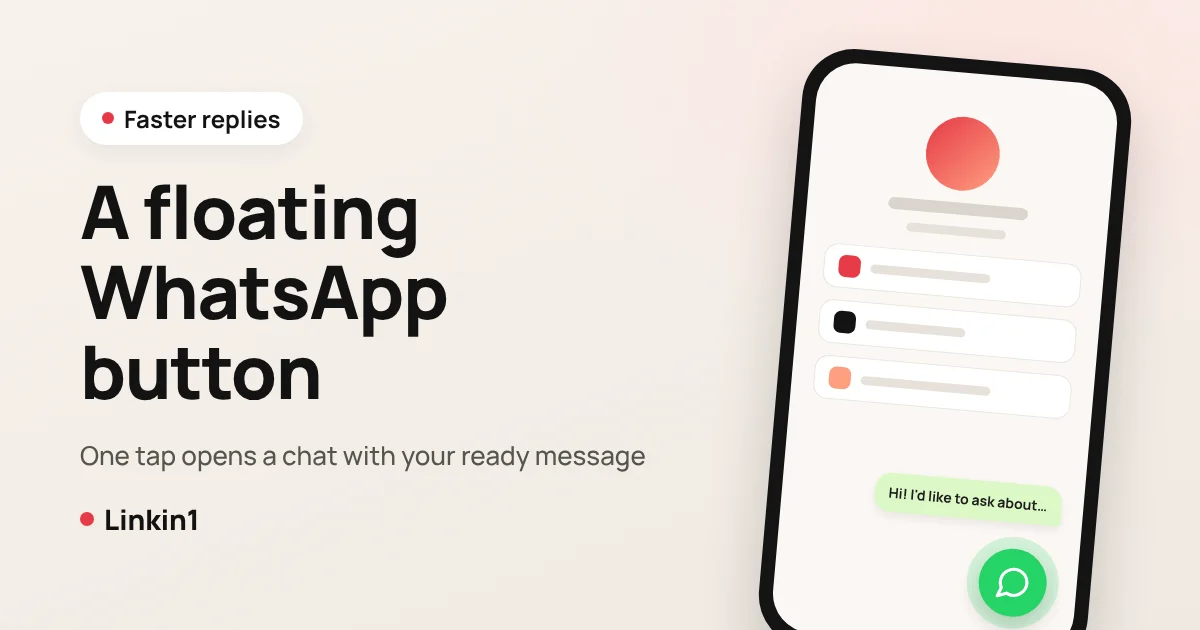
A floating WhatsApp button fixes both problems. It is a round button pinned to a corner of your page that stays visible however far the visitor scrolls, and it opens a chat with you that already contains a pre-filled message you wrote.
The short answer
On Linkin1 you add a floating WhatsApp button from Apps → Enhancements → WhatsApp button. Enter your number with its country code and the message the customer will see when the chat opens, then choose the button's position, colour, size and animation. The button opens an official wa.me click-to-chat link, so it works in the WhatsApp app on phones and in WhatsApp Web on computers. It is available on the Pro and Basic plans.
Why a floating button instead of a plain WhatsApp link?
- Always in view: the button does not scroll away, so it is there at the exact moment the visitor decides to ask.
- Instantly recognised: a green circle in the corner of the screen is a universal "chat with us on WhatsApp" signal. Nobody needs it explained.
- A pre-filled message breaks the ice: the customer does not start from a blank box. They see something like "Hi, I'd like to ask about your prices" and just tap send.
- You know where the lead came from: mention your page or offer in the message and you will recognise chats that started from your link in bio.
You can still keep a regular WhatsApp link in your list of buttons. The floating button does not replace it; it adds a fixed entry point that never gets lost among your links.
What you can customise
- Number: your WhatsApp number with country code, checked for a valid format before saving.
- Pre-filled message: up to 500 characters, placed in the message box when the chat opens.
- Label next to the button (optional): a short line of up to 40 characters, such as "Ask us on WhatsApp".
- Position: bottom right or bottom left. On desktop the button lifts itself above the QR code card, and on menu pages it stays clear of the cart bar.
- Colour: classic WhatsApp green or any colour that fits your brand.
- Size: small, medium or large.
- Animation: pulse wave, heartbeat, bounce, or none.
- Devices: all devices, phones only, or computers only.
- Delay: show it straight away, or 3, 5 or 10 seconds after the page opens.
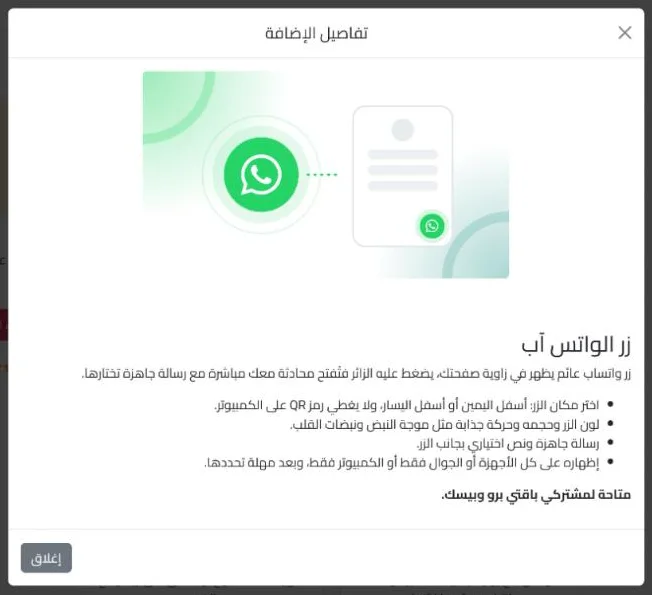
How to add a floating WhatsApp button, step by step
- Open your Linkin1 dashboard and go to Apps.
- Scroll to the Enhancements section and press Install on WhatsApp button.
- Open the app's settings, pick your country and type your number.
- Write the pre-filled message customers will see, and an optional label for next to the button.
- Choose position, colour, size and animation, and check the live preview before saving.
- Choose the devices and the delay, save, then open your page on your phone and test the button yourself.
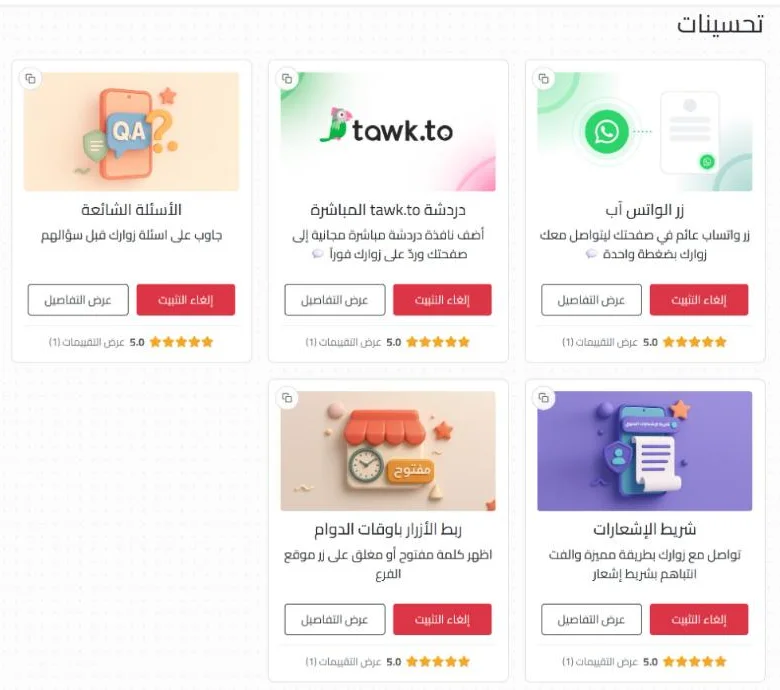
Pre-filled message ideas for your business
- Online shop: "Hi! I saw your products on your page and I'd like to order."
- Restaurant or café: "Hello, I'd like to book a table or ask about delivery."
- Salon or clinic: "Hi, which appointments do you have free this week?"
- Freelancer or designer: "Hello, I have a project and I'd like to know your price and timeline."
- Seasonal offer: "Hi, I'd like to use the weekend offer." Change it when the offer ends.
If your page is published in several languages, you can translate the message and the label so each visitor sees them in their own language.
Tips to get more conversations
- Use a WhatsApp Business number and turn on an away message for after hours.
- Keep the pre-filled message short and specific; it is a conversation starter, not a brochure.
- On a long page, try a 3-second delay so visitors see your content first and the button appears after.
- Running ads? Add Meta, TikTok and Snapchat pixels to your page so you can retarget visitors who did not message you.
- Use tracking links to see which campaign or platform brings you visitors.
Frequently asked questions
Get started
Every visitor who is thinking about messaging you should find the way right in front of them. Create your free Linkin1 page, then install the WhatsApp button from the Apps page and write your first pre-filled message.