If your work changes how something looks — hair, skin, a smile, a room, a garden, a car — the most convincing thing you can show is the difference. But two separate photos placed one under the other rarely land: the visitor has to scroll, remember the first picture and compare it in their head.
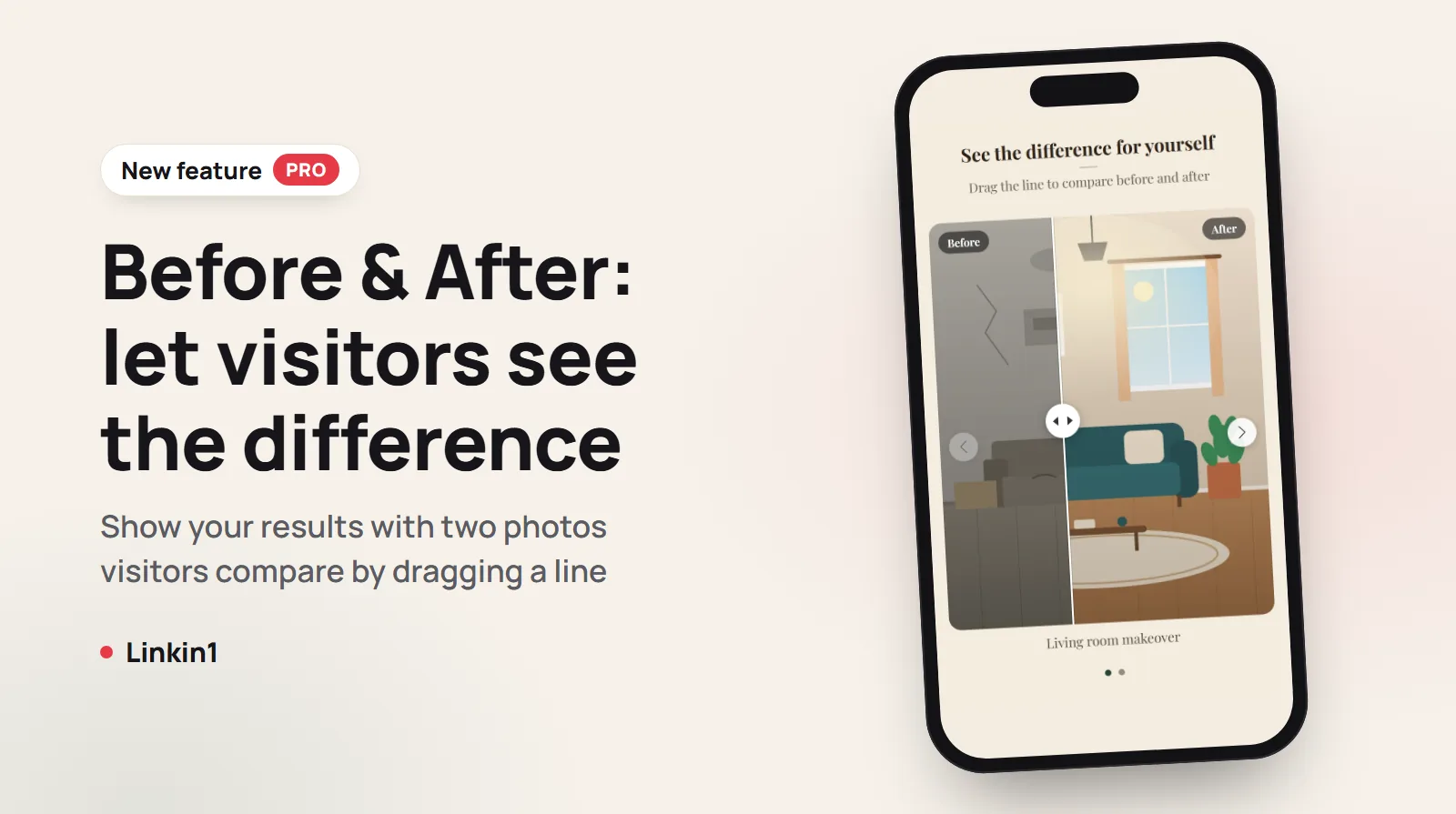
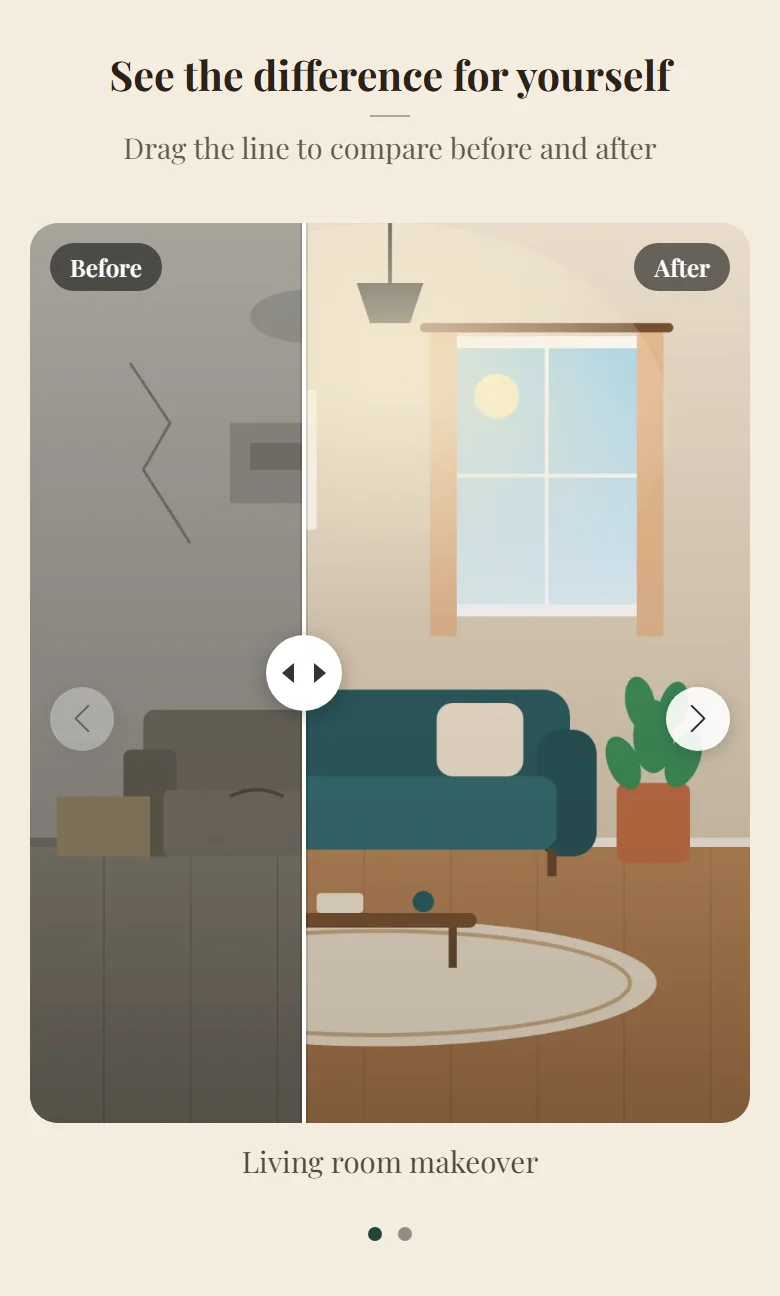
The new Before & After block puts both photos in the same frame. A line runs down the middle, and the visitor drags it to reveal the "before" on one side and the "after" on the other. The result is instant, honest and hard to forget.
In short
- What is it? A block in your Linkin1 page that shows two photos of the same thing, compared with a draggable line.
- How do visitors use it? Drag with a finger on a phone or with the mouse on a computer. It also works with the keyboard.
- Several pairs: up to 12 pairs per block, shown as a slider (one pair at a time) or as a list.
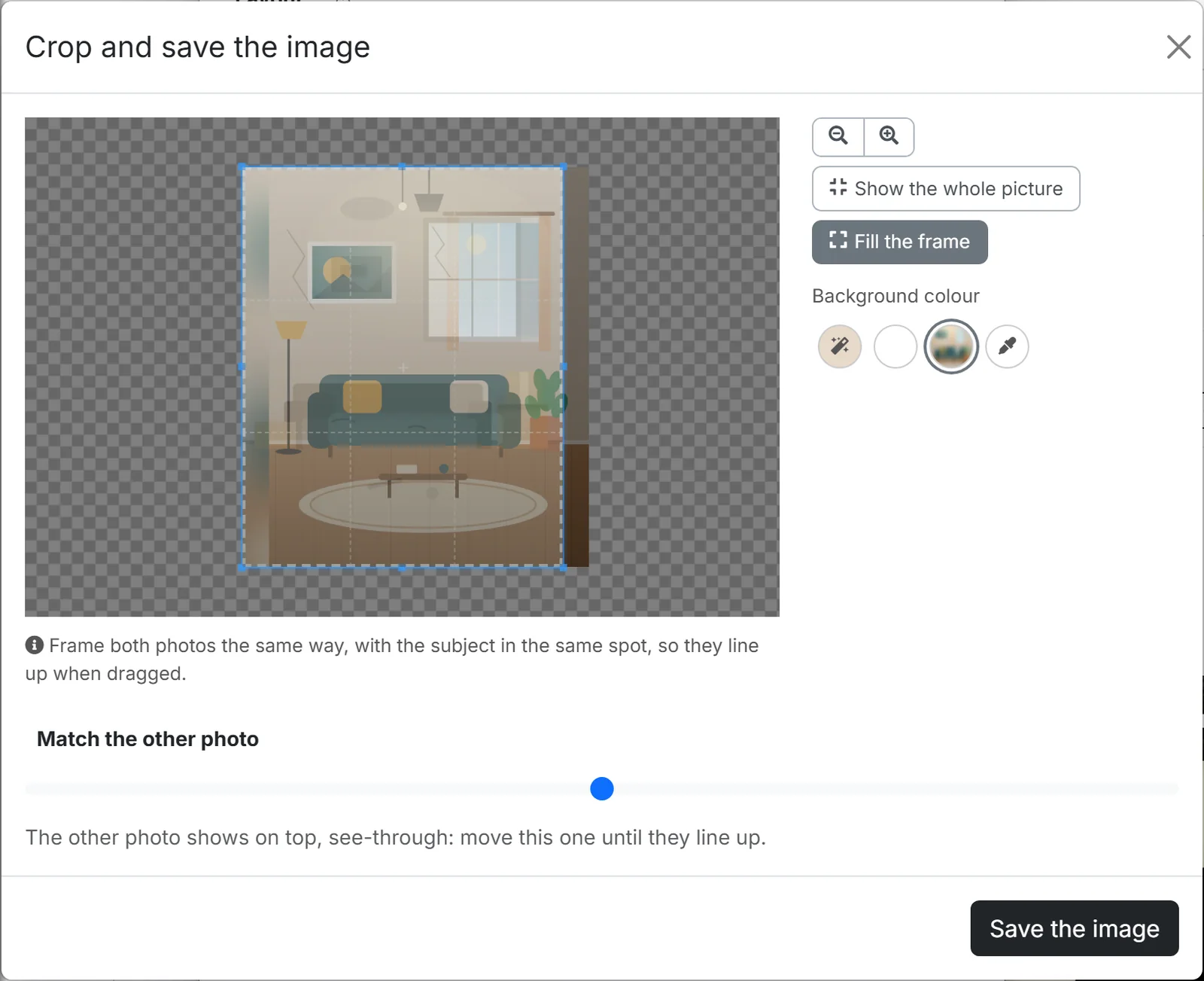
- Perfect alignment: a built-in crop tool frames both photos the same way and shows the first photo see-through while you line up the second.
- Any language: the "Before" and "After" labels appear in each visitor's language automatically.
- Plan: available on Linkin1 Pro.
Who is it for?
- Salons, barbers and nail studios: colour, cut, styling and nail art results.
- Clinics, dentists and skincare: treatment results, with the client's consent.
- Fitness coaches: client transformations over weeks or months.
- Renovation, interior design and landscaping: rooms, kitchens, façades and gardens.
- Cleaning and car detailing: carpets, sofas, cars and anything that comes back like new.
- Photographers, retouchers and designers: the original next to your edit.
How to add a before & after block
- In your dashboard, press Add and choose Before & after (you will find it next to the gallery layouts, right after Reels).
- Give it a title and a short line under it, for example "See the difference for yourself".
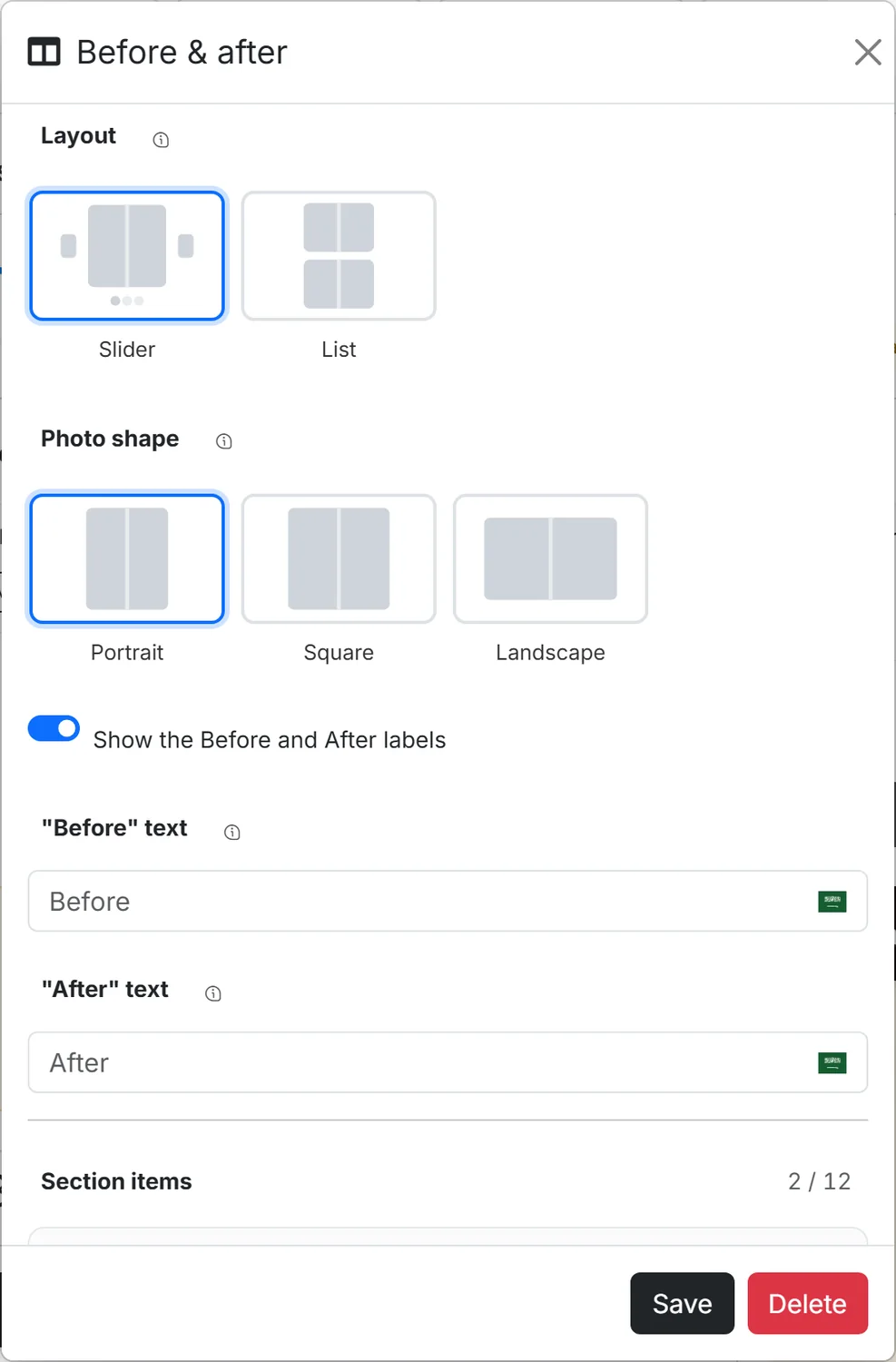
- Choose the layout: Slider shows one pair at a time with arrows and dots; List shows every pair one under another.
- Choose the photo shape: portrait, square or landscape. Both photos of every pair are cropped to it.
- Add a pair, upload the before photo, frame it, then upload the after photo.
- Add a short caption that names the service, such as "Living room makeover", and press Save.
Line up every pair perfectly
A comparison only works when both photos are framed the same way. That is why every photo goes through a crop tool in the shape you chose before it is saved:
- Same framing, automatically: when you move or zoom the first photo, the second one opens already moved and zoomed the same way.
- A see-through guide: while you frame the second photo, the first one is shown on top of it, half transparent, so you can match a window, a doorway or a face exactly. A slider fades the guide in and out.
- Phone photos welcome: pictures taken sideways on a phone are turned upright before cropping, so they never come out tilted or off-centre.
Made for every visitor
- The right side for the right language: the "before" photo sits on the reading side — the right for Arabic, the left for English.
- Labels in the visitor's language: leave the label fields empty and visitors read "Before" and "After" in their own language. You can also write your own words, for example "Day 1" and "Day 30", or hide the labels.
- Translated text: the title, the line under it and every caption can be translated for each language of your page.
- No jumping: the space for the photos is reserved before they load, so nothing on the page moves.
- Light: photos load only when the visitor reaches them, and the slider script loads only on pages that use the block.
Tips for great before and after photos
- Take both photos from the same spot, at the same height and angle. Mark the spot on the floor if you can.
- Keep the same light: same time of day, or the same lamps on.
- Choose portrait for people and hair, landscape for rooms, façades and gardens.
- Show 2 to 4 of your best pairs rather than every job you have done.
- Ask for permission before you publish a client's face, and keep your results honest.
Frequently asked questions
Get started
Your best work deserves more than two photos in a row. Show the transformation the way your clients felt it — in one drag.
Create your Linkin1 page for free, upgrade to Pro, then add your first Before & After block from the Add button.