Running ads on Snapchat, TikTok or Instagram that send people to your link in bio? Then you need to know what happens after the tap: how many people actually reached your page, and how to reach them again with a second ad. That is exactly what a tracking pixel does.
The short answer
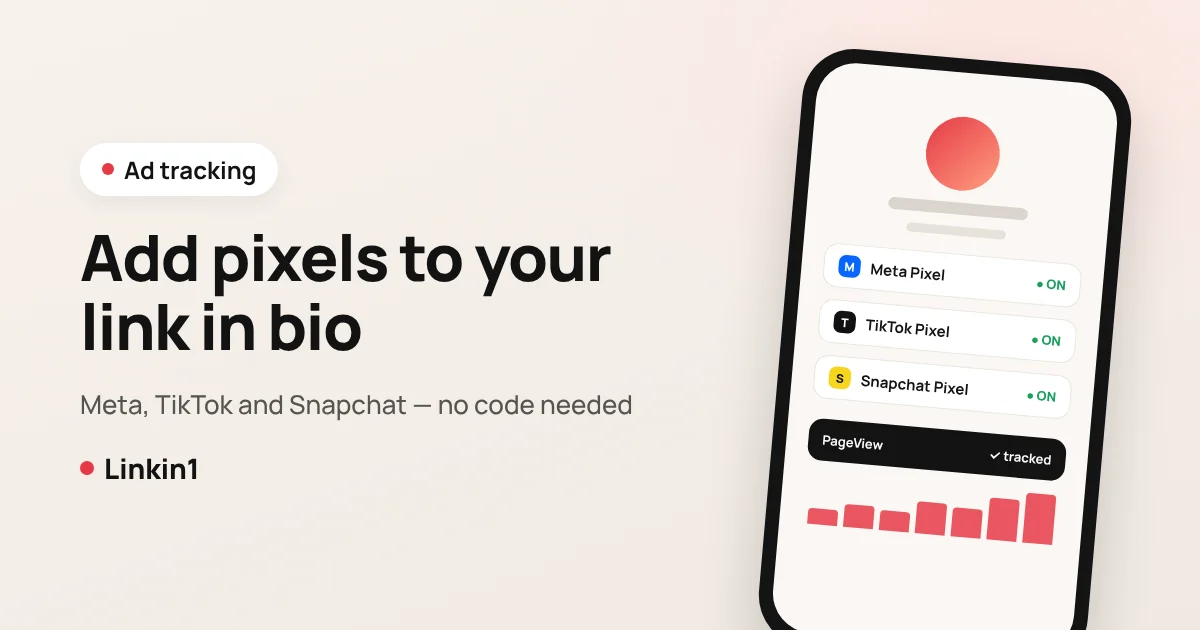
On Linkin1 you can add a Meta Pixel (Facebook and Instagram), a TikTok Pixel and a Snapchat Pixel to your link in bio page without touching code: open Apps, pick the pixel in the Analytics & statistics section, press Install, paste your Pixel ID and save. The pixel code is then added to your page automatically and fires a page view event for every visitor, so you can measure ad traffic and build retargeting audiences.
What a pixel is, and why your link in bio needs one
A pixel is a small snippet of code from an ad platform that sits on your page. When someone opens the page, the pixel tells the platform that this person visited. The platform matches that visit to the user's account, which gives you three practical benefits in your ads manager:
- Real ad measurement: you see how many visits actually landed on your page, not just how many clicks the ad got. The gap between the two numbers reveals accidental taps and people who left before the page loaded.
- Retargeting audiences: create a custom audience of "people who visited my page in the last 30 days" and show them a follow-up ad with an offer or a reminder. They already know you, so they are usually cheaper to reach and more likely to act.
- Lookalike audiences: once enough visitors have built up, ask the platform to find more people who resemble them.
Without a pixel, every visitor who comes from an ad and leaves is gone for good. And your link in bio is the gateway to everything else you offer: WhatsApp, your store, your menu, bookings, payments. That makes it the natural place for your pixels.
Pixels and tracking tools available on Linkin1
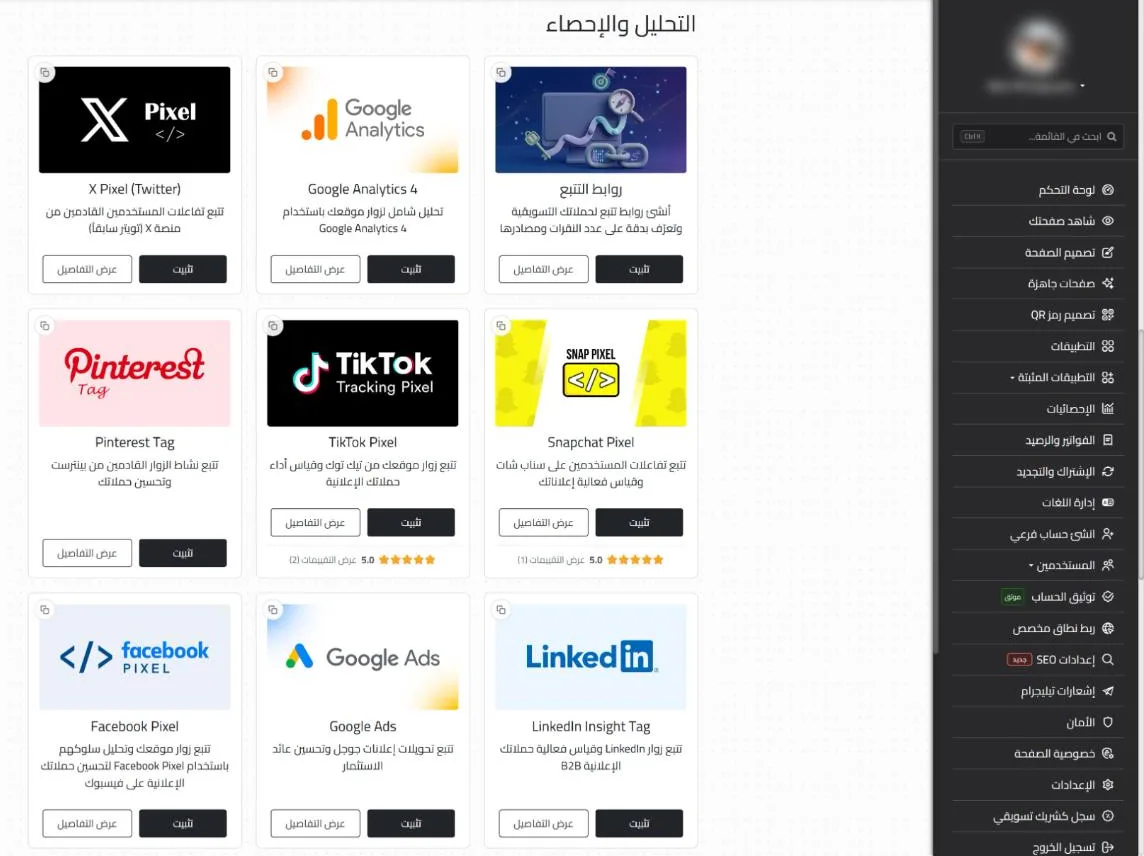
You will find them all on the Apps page under Analytics & statistics. Each one is installed and configured on its own:
- Facebook Pixel (Meta): one pixel covers both Facebook and Instagram ads in Meta Ads Manager.
- TikTok Pixel: for TikTok campaigns and retargeting your page visitors.
- Snapchat Pixel: essential if you advertise on Snapchat, especially in Saudi Arabia and the Gulf.
- X Pixel, Pinterest Tag, LinkedIn Insight Tag and Google Ads: for campaigns on those platforms.
- Google Analytics 4 and Hotjar: for deeper traffic and behaviour analysis.
How to add a pixel to your link in bio, step by step
The steps are the same for every platform. Here they are with the Meta Pixel:
- In Meta Events Manager, open your pixel (Meta now calls it a dataset) or create one, and copy its ID. It is a 15 or 16-digit number.
- In your Linkin1 dashboard, open Apps and scroll to Analytics & statistics.
- On Facebook Pixel, press Install, then open its settings.
- Paste the ID and save. If the ID is incomplete or in the wrong format, you get a warning before anything is saved.
- Open your page on your phone or in another browser, then check in Events Manager that PageView events are arriving. They can take a few minutes to show up.
Adding a TikTok Pixel
In TikTok Ads Manager, go to Assets → Events, create a web pixel and copy its ID (20 upper-case letters and digits). In Linkin1, install TikTok Pixel from the same section, paste the ID and save. The pixel records a page view for every visitor.
Adding a Snapchat Pixel
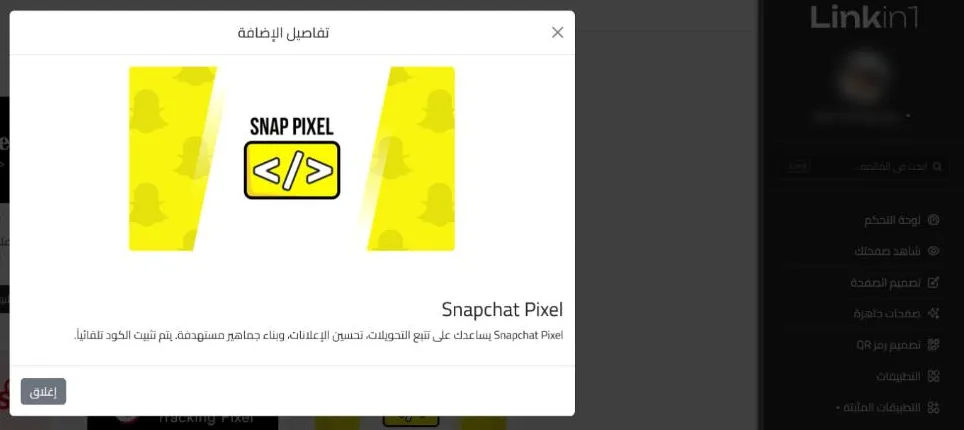
In Snapchat Ads Manager, open Events Manager and copy your Pixel ID, a long string of letters and digits separated by dashes. Install Snapchat Pixel in Linkin1, paste it and save. It fires a PAGE_VIEW event on each visit.
Getting value from your pixel once it is live
- Build a page-visitor audience: in your ads manager, create a custom website-visitor audience over 30 or 60 days.
- Run a different second ad: people who saw your page but did not get in touch can get a specific offer or a "last day" reminder.
- Exclude warm visitors: in prospecting campaigns, exclude page visitors so you do not pay twice to reach the same person.
- Pair pixels with tracking links: the pixel reports the visit to the ad platform, while tracking links show you, inside Linkin1, how many clicks each campaign and source produced. Use a different link for each ad and compare.
Tips before you launch a campaign
- Install the pixel a few days before the ads start if you can, so an audience builds from your normal traffic.
- Confirm it fires with each platform's browser helper: Meta Pixel Helper, TikTok Pixel Helper and Snap Pixel Helper.
- Want separate audiences for separate businesses? Give each sub-account its own pixel.
- Mention in your privacy policy that you use advertising measurement tools, and follow the data protection rules that apply where you operate.
Frequently asked questions
Get started
Every dollar you spend on ads deserves to be measured, and everyone who showed interest deserves a second chance to hear from you. Create your free Linkin1 page, then install your pixel from the Apps page before your next campaign. Comparing tools? Read the best Linktree alternative in 2026.