Menus, catalogs, brochures, portfolios — most of them live as PDF files. And a PDF link on a phone is a poor experience: the file downloads, opens in a tiny viewer, the visitor pinches and zooms, and then leaves. Your content is good; the way it is shown lets it down.
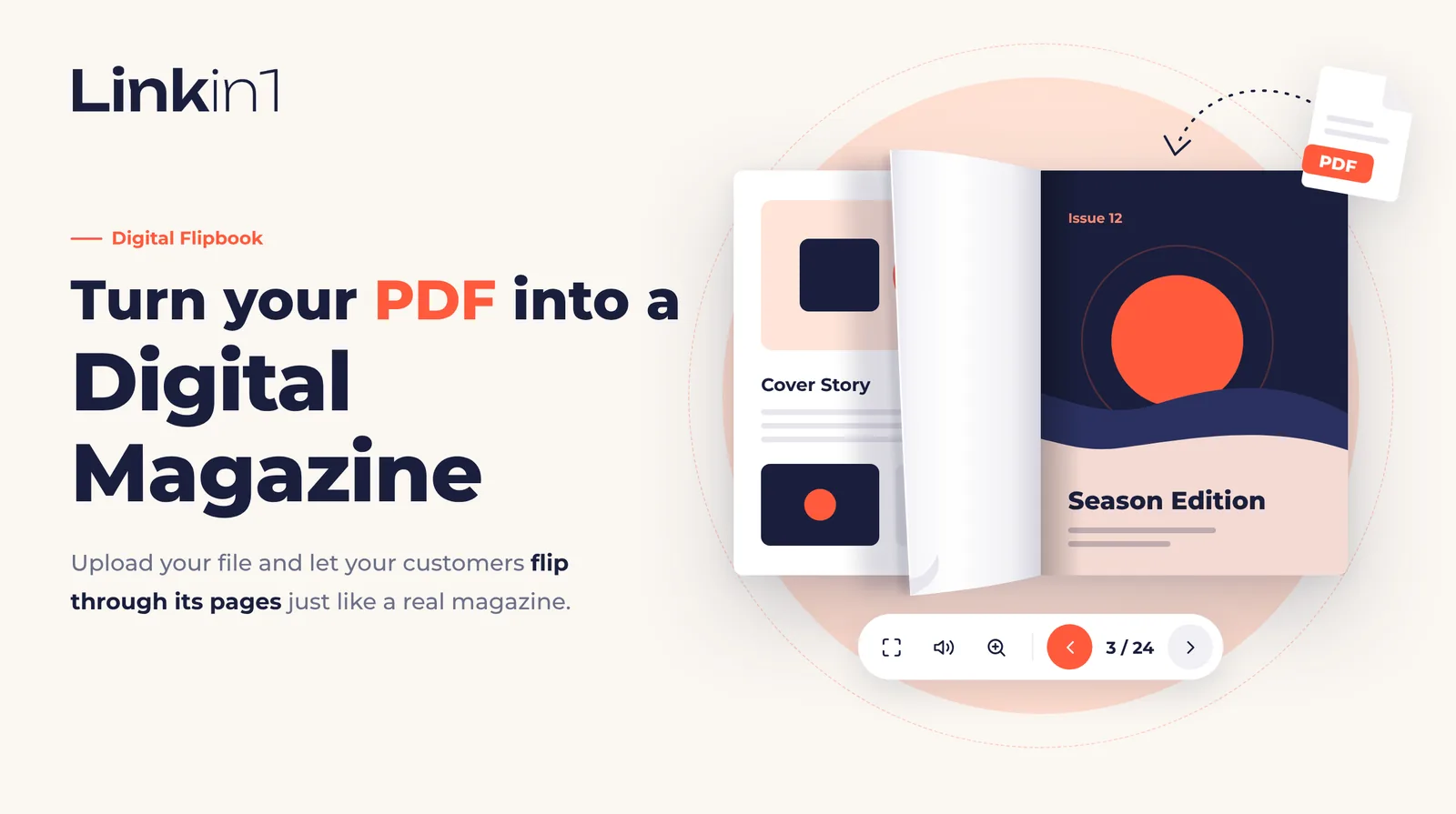
The digital book in Linkin1 fixes that. Upload a PDF straight from your device or paste a Google Drive link, and visitors get a page-turning digital book they flip with a swipe or a click — right inside your page, with nothing to download and no app to install. You can also give it a title, the dates it is valid, and sections visitors jump to in one tap.
In short
- What it is: a Linkin1 block that shows a PDF as a digital book with realistic page turns.
- Where the file comes from: upload it from your device (up to 50 MB), or use a Google Drive link.
- Where it works: phones and desktops, in any modern browser — visitors never have to download the file.
- Organised: a title, start and end dates, and sections that open straight on their page.
- Reading direction: right-to-left for Arabic, left-to-right for English, or automatic by the visitor's language.
- Plan: publishing is part of Linkin1 Pro; anyone can try it and preview it in the dashboard.
New: upload a PDF straight from your device
You no longer need Google Drive. In the book editor choose Upload a PDF, then Choose a PDF from your device. A progress bar shows the upload, and the file is stored with us, so there is nothing to share on Drive or with anyone else. Changed the file later? Press Replace file and upload the new version.
New: a title, valid dates and sections
- Book title: shown above the book, for example "This week's offers" or "Winter menu".
- Start and end dates: shown under the title in a clean format such as "7 – 13 October" — handy for offers, events and anything that runs for a period.
- Sections: name each section and enter its first page (say "Drinks, from page 12"), and visitors get buttons that take them straight there.
- In every language of your page: the title and section names have translation fields, so each visitor reads the book in their own language.
What makes it pleasant to read
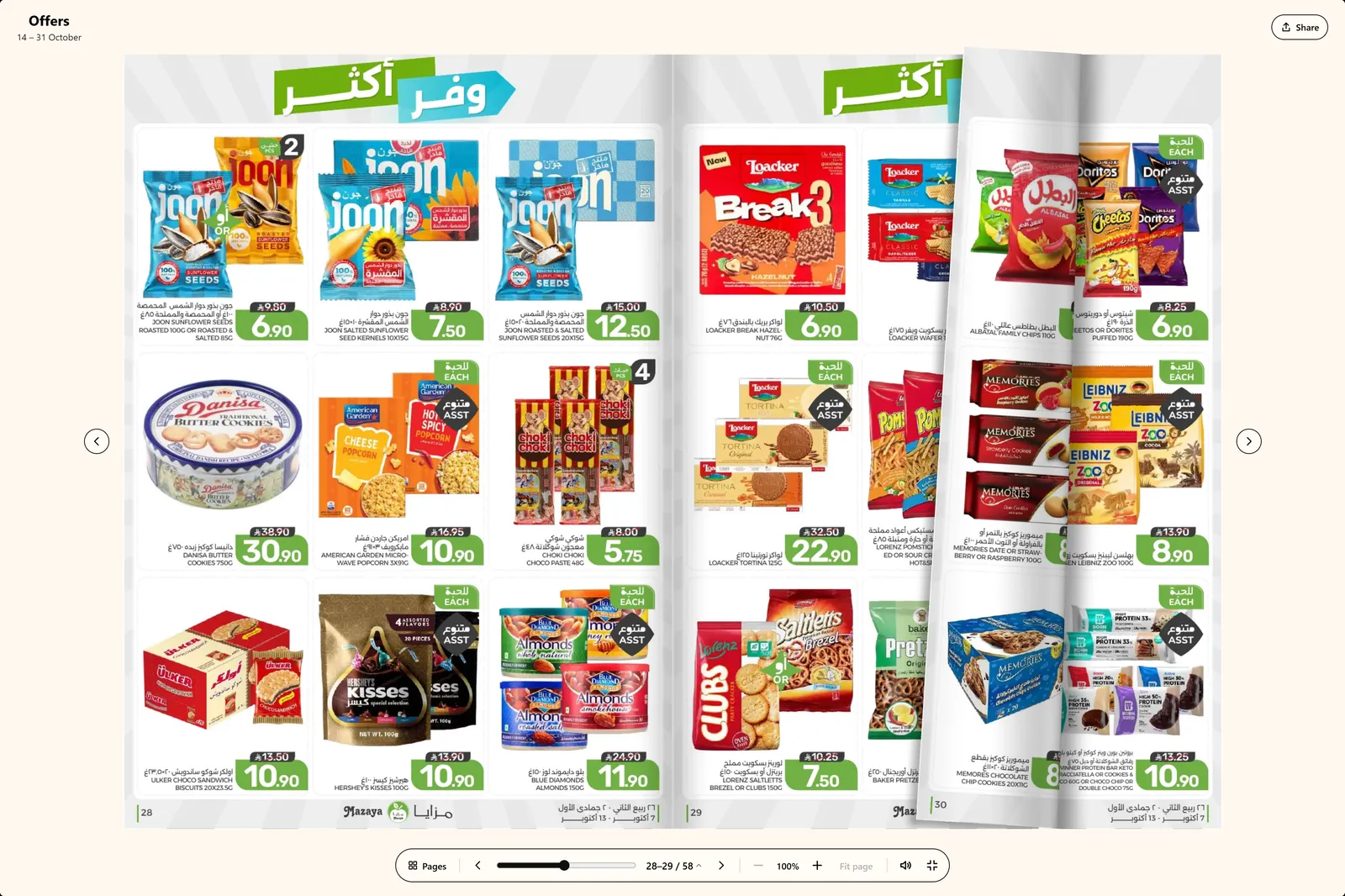
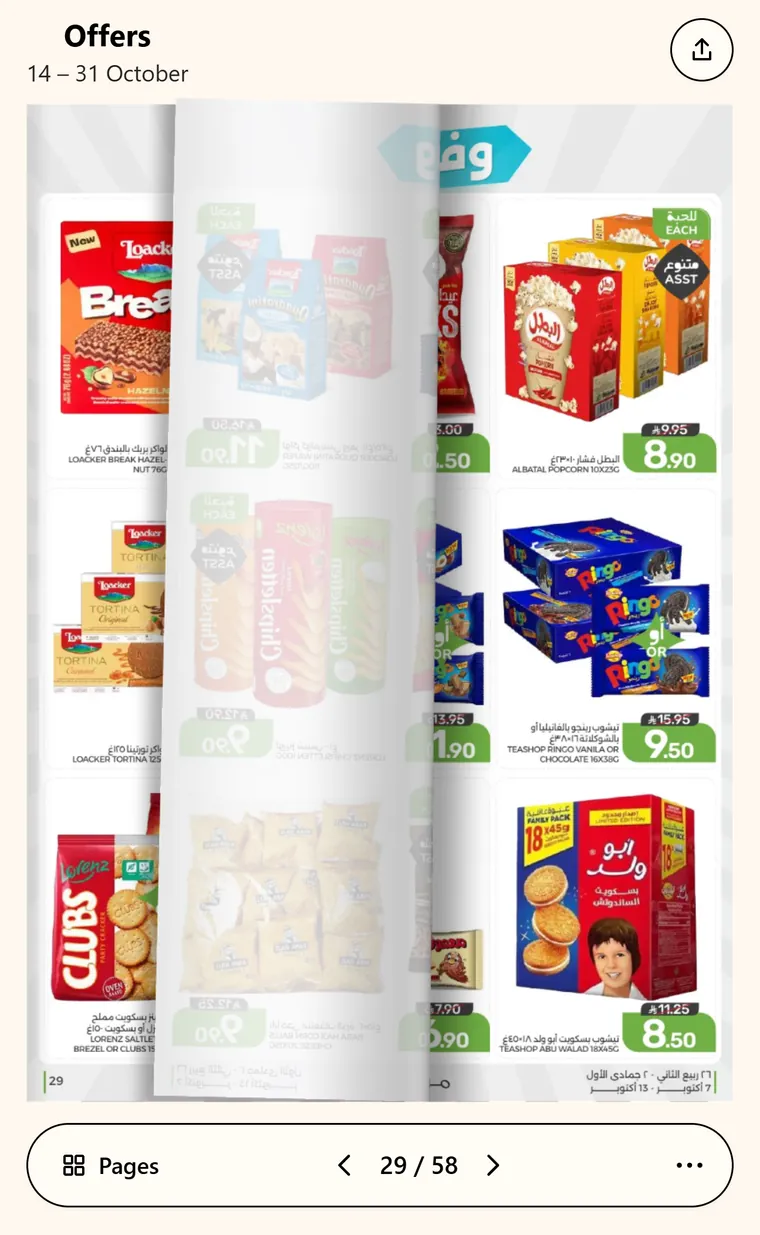
- Real, responsive page turns: drag the page with a finger, tap the arrows or use the keyboard — the page folds like real paper and reacts to the lightest swipe.
- Two pages or one: an open spread on a computer, one clear page at a time on a phone.
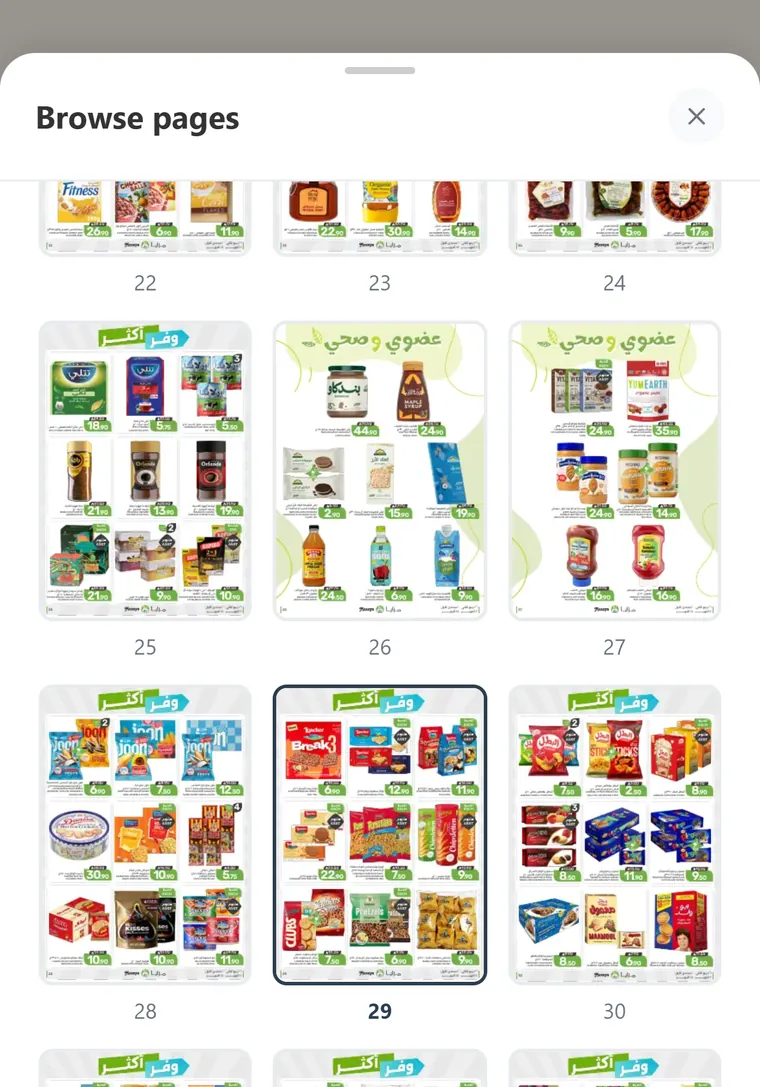
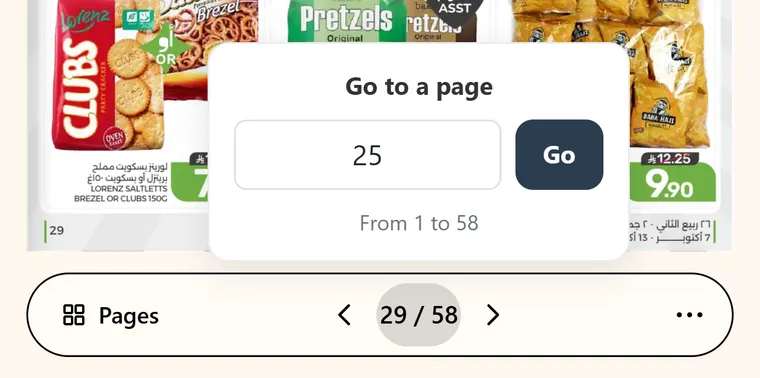
- Browse pages or jump to one: every page as a thumbnail, or type a page number and go straight there.
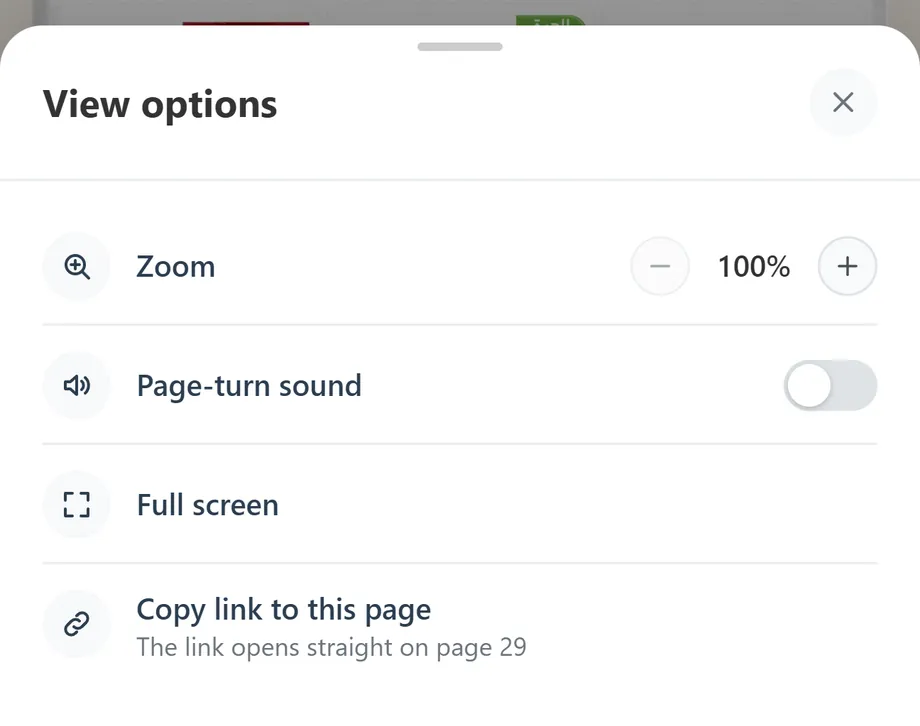
- Comfortable zoom: double-tap or pinch to zoom in and read the small print.
- Full screen: the book title on top, side arrows on wide screens, and controls that fade away while you read — it even adapts to a phone turned sideways.
- Remembers the place: a visitor who comes back carries on where they stopped.
- Matches your design: the glass navigation bar takes your template's button colours and corner style automatically, on light and dark backgrounds alike.
New: sharing and download
- Share a specific page: the share button sends a link that opens the book on the very page the visitor is reading — perfect for pointing someone to one offer in a catalog.
- PDF download (optional): switch on "Let visitors download the PDF" and a "Download PDF" button appears in the book menu. It is off by default, so your file is only downloadable if you want it to be.
Fast, even with big files
Visitors never download the PDF (unless you switch the download button on). Each page is converted once into a light, optimized image, phones get a size made for their screen, and pages load only as the reader gets close to them. When you save the book we prepare its first pages in advance, so it opens instantly for the very first visitor. Your page stays fast even when the book runs to hundreds of pages.
Who is it for?
- Restaurants and cafés: a PDF menu as an elegant book, with sections for drinks and dishes. (For a menu with a basket and orders, see the QR menu guide.)
- Shops and supermarkets: product catalogs and the weekly offers flyer, with its start and end dates.
- Real estate: project brochures and floor plans.
- Designers and photographers: a portfolio that reads like a magazine.
- Companies: company profiles and price lists.
- Coaches and teachers: workbooks, handouts and course notes, split into chapters.
- Events: the programme, the schedule and the visitor guide.
How to add a digital book to your page
- In your Linkin1 dashboard, press Add and choose Digital book under Files & forms.
- Choose where the file comes from:
- Upload a PDF: pick the file on your device and wait for the upload to finish.
- Google Drive link: set sharing to "Anyone with the link" and paste the link — the editor checks straight away that it is a public PDF.
- If you like, add a title, start and end dates, sections with their page numbers, and switch on the download.
- Pick the page-turn direction (we recommend "Automatic, by page language") and add a short description if you want one.
- Check the preview — it is exactly what visitors will see — and save.
Already have a Google Drive embed on your page? Open it, and when the link is a PDF you will see Document display: choose Digital book instead of "Document as is".
Updating the book
- Uploaded file: open the book, press "Replace file", upload the new version and save.
- Google Drive link: choose Manage versions in Drive and upload the new file. The link stays the same and the book updates by itself within about an hour.
Limits and requirements
- PDF files only, up to 50 MB and 300 pages.
- A Google Drive link must be shared with "Anyone with the link"; an uploaded file needs no sharing at all.
- Google Docs or Slides: export them as PDF first.
- Password-protected PDFs cannot be shown as a book.
Tips for a better book
- Make page one a strong cover — it is the first thing visitors see.
- Portrait pages (A4, A5, Letter) look best as a book.
- Split a long catalog into sections: visitors reach what they want in one tap instead of flipping page by page.
- Add the valid dates to offer flyers, so visitors know the deals are current.
- Use clear, generously sized type: on a phone, readers see one page at a time.
Frequently asked questions
Get started
Your content deserves better than a download link. Turn your menu, your shop's offers flyer or your portfolio into a digital book visitors actually enjoy flipping through — in under two minutes.
Create your Linkin1 page for free, then add your first digital book from the Add button.