The Forms app in Linkin1 already collects everything your visitors send you: contact requests, quote requests, event sign-ups, complaints, suggestions, job applications. But the real work usually does not happen inside a dashboard — it happens in a spreadsheet your team can filter, sort, annotate with a status column, and turn into a report.
The Google Sheets sync closes that gap completely. You connect a form to a spreadsheet in your own Google account, and from that moment every new submission appears in the sheet within seconds — no manual exports, no CSV files scattered across a team, no arguments about which copy is the current one.
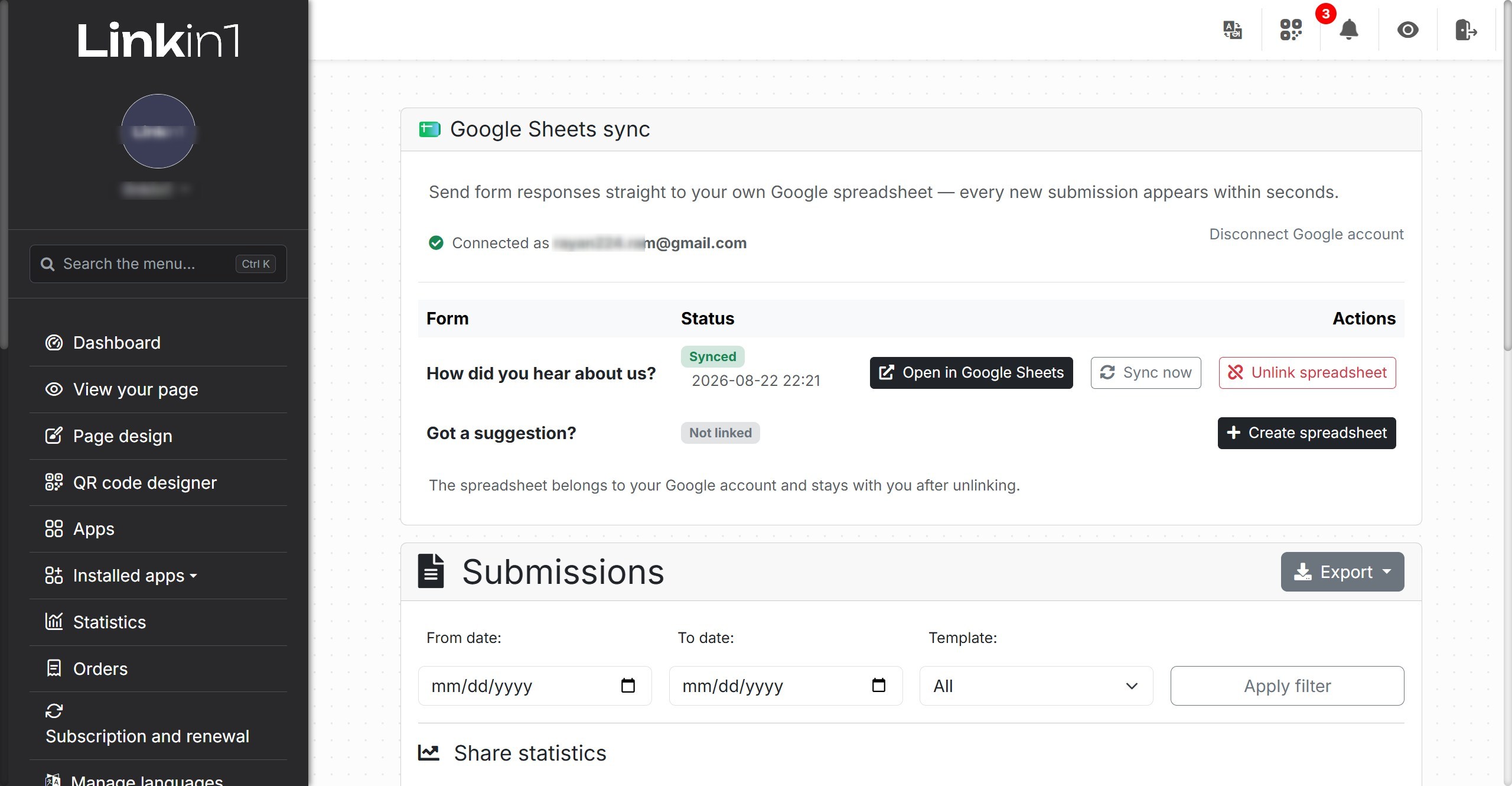
What the feature actually does
It creates a spreadsheet in your own Google account for each form you choose, and keeps it up to date on its own:
- On connect: the spreadsheet is created with your form's name and immediately filled with every submission you already had — you never start from an empty file.
- After connect: each new response is appended as a new row within seconds of the visitor pressing Send.
- When the form changes: add a field and it gets a new column on the right, with the header row rewritten automatically.
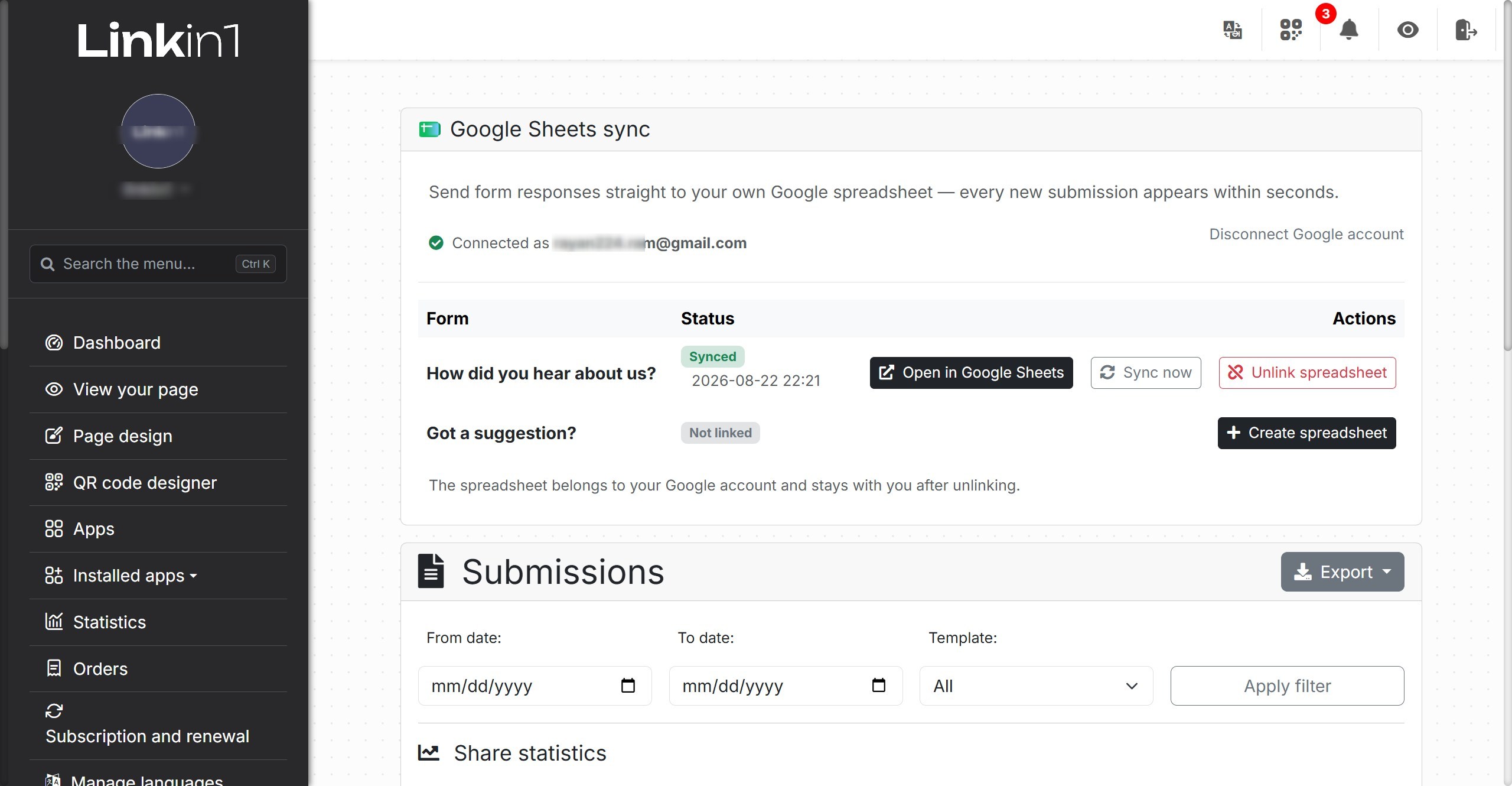
- Whenever you need it: the Sync now button rebuilds the whole sheet from our own database, repairing any difference whatever caused it.
Every form gets its own spreadsheet, and you can connect some forms and leave others alone. The sync is also one-way: Linkin1 writes to the sheet, it never reads from it and never pushes anything back into the form.
Connecting a form takes under a minute
- Open your dashboard, then Installed apps → Forms → Submissions.
- In the Google Sheets sync card, press Connect Google account next to the form you want.
- Accept Google's permission screen (more on exactly what it asks for below).
- You come back to the same page with the form now marked Synced, next to an Open in Google Sheets button.
- For any other form after that, one Create spreadsheet click is enough — the account is already connected.
No code, no API keys, no middleman service like Zapier or Make. A single button performs the consent, the spreadsheet creation and the backfill together, because from your side that is one action, not three.
What the spreadsheet looks like inside
The file has one tab named Submissions and a fixed header that starts with three columns — Template name, Submission ID, Sent on — followed by one column per form field, in the order you built them.
- Dates are in Riyadh time, exactly as the submissions table shows them in your dashboard.
- Multi-choice checkbox answers are written into one cell, comma separated.
- Uploaded files become a full clickable URL, not a bare path nobody can open.
- Deleted fields keep their column, because the rows above them were written that way and their values must not slide one column to the left.
- New fields are appended on the right and never disturb what came before.
The result is a sheet that matches your CSV export column for column — deliberately, because both are built by the same code and must never drift apart.
What happens behind the scenes
The engineering detail matters here, because it explains why this feature is safe for both your data and your page speed.
1. The visitor never waits for Google
When a form is submitted, the response is written to our database first and always. The reply is then closed and handed to the browser, and only afterwards is the row sent to Google — on our time, not the visitor's. However slow Google happens to be at that moment, your form answers at its normal speed.
2. Our database is the record; the sheet is a copy of it
If the push to Google fails for any reason — a brief outage, a rate limit, an expired grant — the submission is already saved and cannot be lost. The only cost is a sheet that is one row behind, and the form is marked Needs syncing. One press of Sync now rewrites the whole spreadsheet and fixes it.
That is why there is no retry queue and no scheduled job behind this feature: a full rewrite fixes every case a queue would have fixed, in a single request.
3. "Sync now" is the repair for everything
One button handles a failed push, a reconnected account, a form whose fields changed, or a sheet somebody edited by hand. It clears the contents of the Submissions tab and rewrites it from our data, up to 5,000 submissions (the most recent). Formatting, colours and column widths survive — the clear removes values, not styling.
Security and privacy: what we actually ask your Google account for
This is the most important section of the article, and it deserves to be explicit.
- One scope only:
drive.file— it grants access only to files the app itself created. Linkin1 cannot see or open a single file that already existed in your Drive. The broader scope that would open all of your spreadsheets exists at Google, but we do not request it and have no need for it. - Completely separate from signing in with Google. A login asks who you are; this asks for permission to write files in Drive. Two different questions, at two different moments, with two separate consent screens.
- Access keys are encrypted. The refresh token is stored AES-256-GCM encrypted through the same vault that protects our payment gateway credentials. Even the short-lived access token is encrypted at rest.
- The spreadsheet is yours. It is created inside your own Drive, owned by you, and it stays with you after you disconnect, after you unlink, and even if you stop using Linkin1 entirely.
- "Unlink spreadsheet" does not delete the spreadsheet. We simply stop writing to it. Deleting a file full of somebody's customers because they pressed a button would be indefensible.
- Hardened against abuse. Every button is a POST carrying a CSRF token, and the consent round trip is protected by a
statevalue minted for your session, used once, and expired after ten minutes. - Disconnect at any time.Disconnect Google account hands the grant back to Google and deletes every stored link on our side. You can also revoke the permission directly from your Google account settings.
Why this matters
It moves your data to where your team actually works
A dashboard is a fine place to read. A spreadsheet is where you work: sort by city, filter the unprocessed requests, add a "status" and an "owner" column, build a pivot table counting responses per source, chart it in a second.
It opens the door to everything that connects to Google Sheets
- Share the sheet with a colleague without giving them access to your Linkin1 dashboard.
- Point Looker Studio at it and get a live report that updates itself.
- Run a Google Apps Script to send an auto-reply or an email alert when a new row lands.
- Wire it into automation tools (Zapier, Make, Power Automate) that already speak Sheets natively.
- Use formulas and conditional formatting to flag urgent requests automatically.
It ends the "export → download → upload → re-sort" cycle
A manual export is stale the second it finishes downloading, multiplies into different copies on different computers, and leaves everyone asking which file is current. Live sync removes the question entirely.
It doubles as a live backup outside the platform
Your data lives with us and with you at the same time, in an account you own, in a format every program on earth can read.
Practical examples
- Restaurant: a post-visit feedback form → a daily sheet the manager opens on their phone and sees complaints as they arrive.
- Clinic or salon: an appointment request form → a sheet reception sorts by day with a confirmation column.
- Store: a quote request form → a shared sheet where each sales rep updates the status of their own request.
- Recruiting: a job application form with CV upload → a sheet with a direct link to every uploaded file.
- Event: a registration form → a pivot table counting sign-ups per session in real time.
Good things to know
- Do not keep your own notes inside the
Submissionstab — Sync now clears and rebuilds it. Add a second tab and write there safely; other tabs are never touched. - Do not reorder the header columns or rename the tab — new rows are written against the stored column order.
- The rebuild limit is 5,000 rows. Beyond that, the most recent are synced and the CSV export remains the way to get absolutely everything.
- Manual edits do not travel back. The sync is one-way; what you type in the sheet stays in the sheet.
- If you see "the connection has expired", the grant was revoked on the Google side — reconnect, then press Sync now.
Common questions
Do I need technical knowledge? No. It is a button and a Google consent screen.
Can Linkin1 read my other Drive files? No. The requested permission covers only files the app created itself.
Do my old submissions come across? Yes, all of them, the moment the spreadsheet is created.
Can I connect more than one form? Yes, and each form gets its own separate spreadsheet.
What if I delete the spreadsheet from Drive by mistake? Unlink it and create a new one; it is filled from our data straight away.
Does it slow my form down? No. The push to Google happens after the visitor has already received their reply.
Start now
If you collect responses through a form on your page, this feature turns those responses from a list you read into data you manage. Enable the Forms app, open Submissions, connect your form to your spreadsheet — and never export a file again.
Create your Linkin1 page for free and start collecting your responses in one place.