Most small businesses run their diary through chat: "do you have a table on Thursday?", a reply two hours later, a third message about the time, and a paper book where two appointments quietly land on the same hour. The problem is not the number of messages. It is that the appointment does not actually exist until you answer — and you are usually busy.
The Booking app in Linkin1 is a complete booking system inside your own page: one button you add yourself, which opens a window where the visitor picks a service, a date and a time and confirms it themselves — no back-and-forth, no app to install, no second website. The result is an online booking system that works around the clock while the bookings arrive to you in one organised calendar.
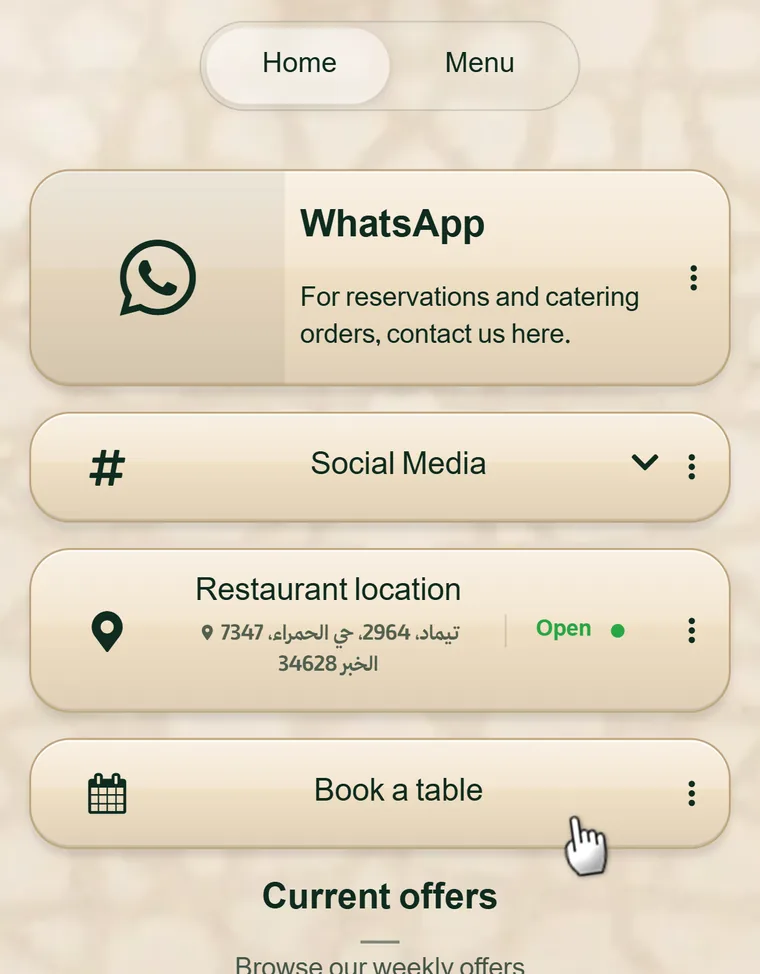
What the visitor sees
They never leave your page. The button opens the booking sheet over the page itself and walks them through three short steps:
- Choose a service — with its name, its length and its price, if it has one.
- Choose a date and a time — the times offered are the ones genuinely free at that moment.
- Enter your details and confirm — name, mobile, email, and any extra questions you added.
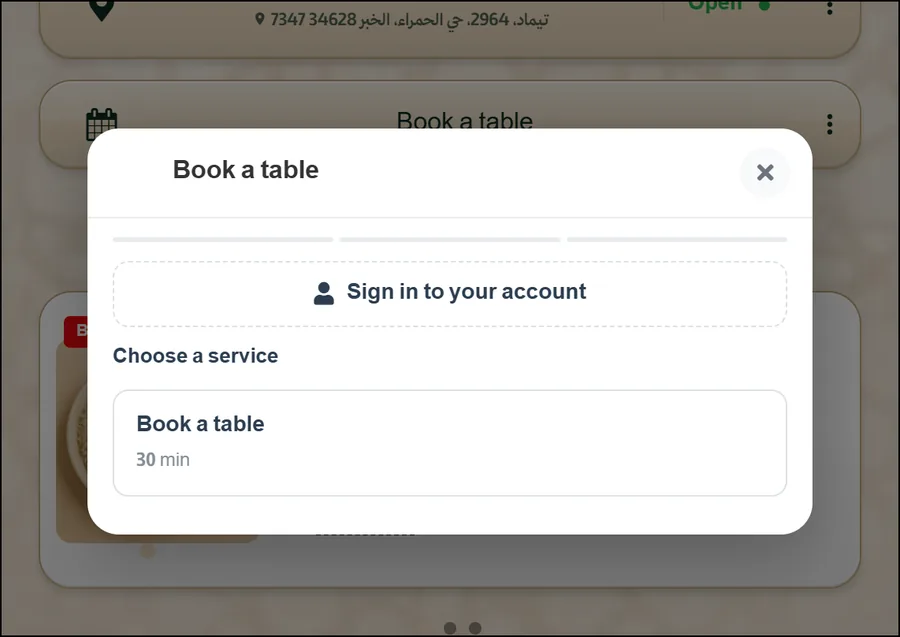
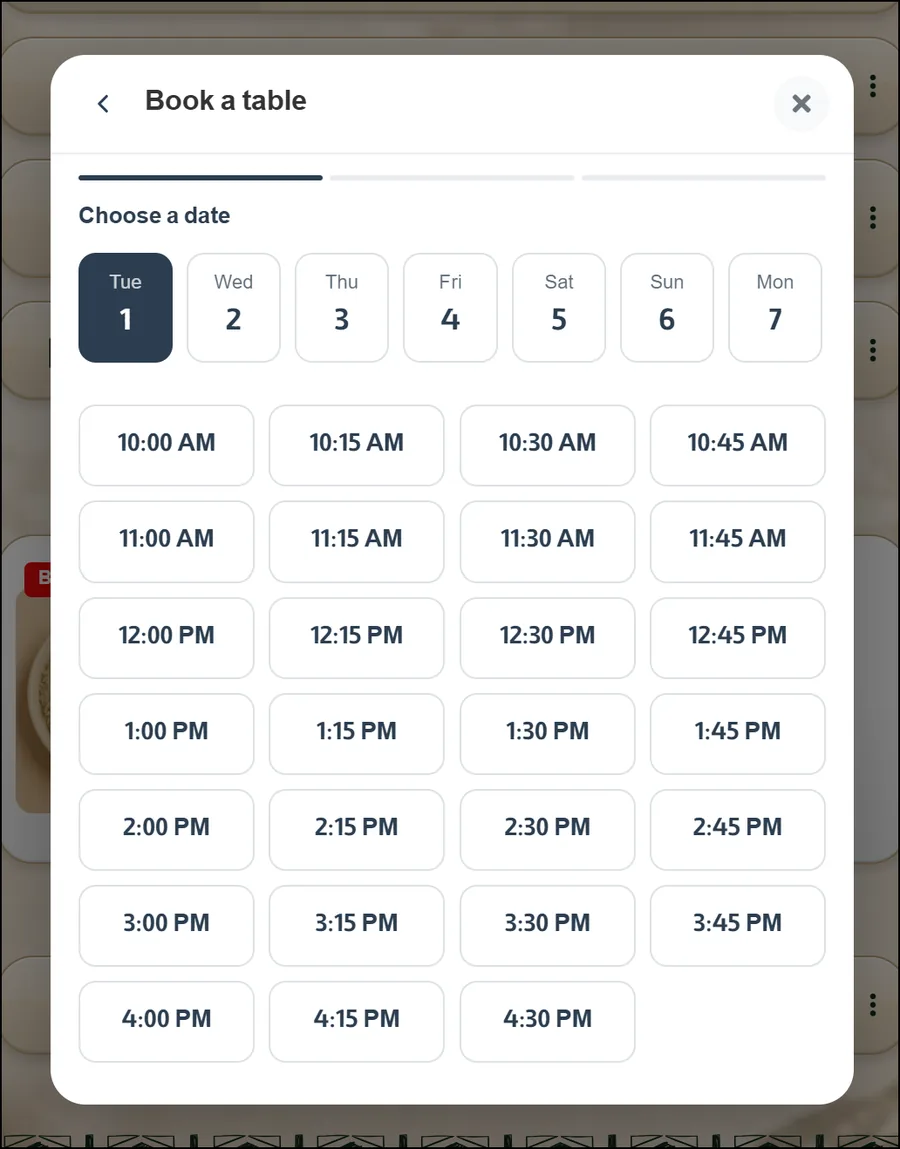
After confirming, the customer gets a booking reference, a confirmation email carrying a calendar file (.ics) that adds the appointment to their phone with an automatic reminder, plus a QR code, a PDF and a link to manage the booking later. No account, no password.
In your dashboard: a list and a calendar
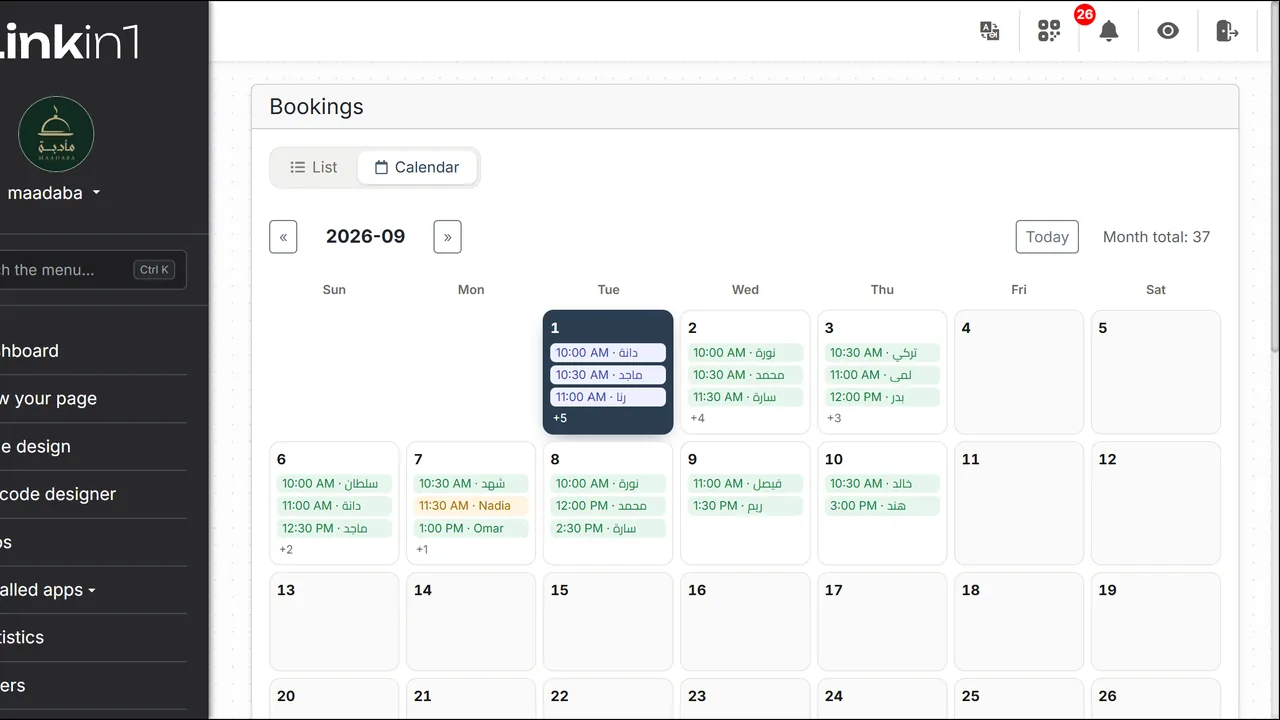
Bookings land on one screen with two views, because they answer two different questions. The list answers "where is this person's booking?" with search, status filters and a date range. The calendar answers "what does Tuesday look like?" at a glance.
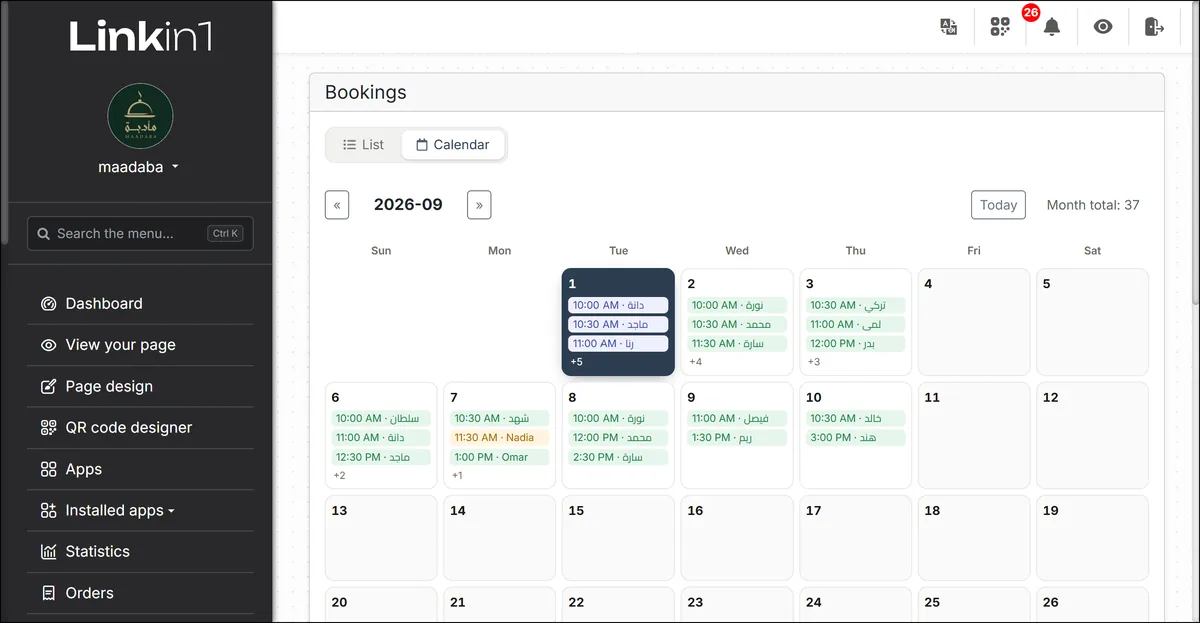
Every booking carries a status you control: awaiting confirmation, confirmed, cancelled, completed, no-show. Times render in the branch's own timezone, not your browser's — so a business with branches in two countries sees each appointment in the zone the customer will actually turn up in.
Services and capacity: who books, and how many at once
- Services: a name, a length in minutes, an optional price, and prep or cleanup time before and after.
- Capacity: a plain number — a restaurant seating 40 at a sitting types 40, a single barber types 1.
- Bookable items: instead of a number, name your tables, chairs or staff. You can also hide the names from customers, so an item still occupies time in the diary without being offered by name.
- Party size: a default and a maximum per booking — set the maximum to 1 and the field disappears.
Opening hours and closures
Appointment scheduling software is worthless if it offers hours you are shut. So the system reads your trading hours from the same Branch working hours app the rest of your page uses — you never enter them twice — including split periods (a midday close), closed days and 24-hour days. On top of that:
- Closures: a whole day or specific hours (a holiday, maintenance, an event) vanish from the customer's calendar immediately.
- Minimum notice: block bookings made less than, say, two hours ahead.
- How far ahead: how many days into the future customers may book.
- Interval between times: every 15, 20 or 30 minutes.
- Show booked times: display them struck through and marked "taken" so a busy diary looks busy — or hide them.
Extra questions, asked by you
A reusable question library, defined once and attached to any service: "which barber?", "inside or outside?", "special occasion?". A single choice can add to the price, make the appointment longer (colour needs 30 extra minutes), or take extra seats (a table for six). All of it shows in the customer's total before they confirm.
Deposits and prepayment
The biggest cause of a fake booking is that it is free. So you can ask for payment before a booking is confirmed: the full price, a fixed amount, or a percentage of it. Payment runs through your own payments account (Moyasar) — the money goes straight to you and we never hold it. The customer's slot is held while they pay, and if they do not finish it goes back on sale automatically. Tax can be switched on at your own rate (15%, say) and shown as its own line before payment.
Notifications: for the customer, and for you
- The customer: a confirmation email with a calendar file and an automatic reminder, a QR code, a PDF, and a link to manage the booking.
- You: an instant Telegram alert on every new booking — the channel that actually buzzes in your pocket, rather than an email buried under a hundred others.
Customers manage their own bookings
The link in the confirmation opens their booking page, where they can cancel or change the time if you allow it — either freely, or only within a window after booking. You set a cutoff before the appointment at which both stop. A cancellation that arrives a day early beats an empty chair with no warning.
There is also a "my bookings" page collecting every booking a visitor made with your business on that device. Anyone who wants their bookings to follow them to another phone can optionally create a customer account with your business.
Google Calendar sync
Connect your Google account and your bookings are written into your calendar: one calendar per branch, one event per booking, updated whenever anything changes or is cancelled. The practical benefit is that Google shares per calendar — so each branch manager gets their branch and nothing else. The sync runs one way: Linkin1 to Google.
Why double-booking does not happen
A list of free times is only true for the moment it was drawn, and two people can tap the same slot in the same second. So the final decision is not made on screen but in the database: every seat is locked by a unique record the instant a booking is confirmed. The first wins; the second is told "that time was just booked, pick another". Alongside that:
- a rate limit per visitor over a short window,
- a cap on live bookings per phone number,
- a blocklist of numbers that may not book online,
- reCAPTCHA on the public submission.
Who is this app for?
In short: anyone selling time or a seat.
- Restaurants and cafés: restaurant booking software for tables and sittings.
- Salons, barbers and beauty clinics: an appointment per chair, and a diary per member of staff.
- Clinics and medical centres: patient appointments with a clear cancellation policy.
- Coaches, tutors and consultants: a 30- or 60-minute session, with a deposit that cuts no-shows.
- Workshops and car services: a maintenance slot with a known length per service.
- Studios and photographers: a shoot, with extra questions about the kind of session.
- Pitches, venues and rentals: hours and locations with a fixed capacity.
- Events and courses: limited seats per time.
How to install it on your page
- Open your dashboard → Apps, and install the Booking app on your page.
- Open Booking settings and set your notice, interval, cancellation rules and tax.
- Create at least one service: name, length, capacity, and a price if there is one.
- Press "Add to my page" — the booking button appears on your page straight away, and you can reorder it among your other buttons.
- Link Telegram for alerts, and Google Calendar if you want your diary mirrored.
The button follows your page's language: if you publish your page in more than one language, the booking sheet — and the button itself — appear in the visitor's language. The app is available on the paid plans.
Common questions
Does the customer need an app or an account? No. They book from the browser, and an account is entirely optional.
Can I take bookings without prepayment? Yes — payment is an option, not a requirement.
Can I confirm bookings by hand? Yes — turn off automatic confirmation and they arrive as "awaiting confirmation".
What if I have more than one branch? Each branch has its own hours and timezone, and the customer picks the location during booking.
Can I use my own wording? Yes — rename "service", "resource" or "guests" to whatever suits your business.
Does it slow my page down? No. The sheet loads its contents only when it is opened.
Start now
If you still take appointments by hand, you are paying for it in time, in messages, and in bookings that never happened. A smart booking system inside your page turns all of that into one button that works for you, day and night.
Create your Linkin1 page for free, install the Booking app, and start taking appointments today.